
From any text to a ready lesson.
Add your material, pick a grade, and LessonPilot builds the tasks, exercises and flashcards — ready to edit, print, or share in Google Classroom.
- 1
Add your content
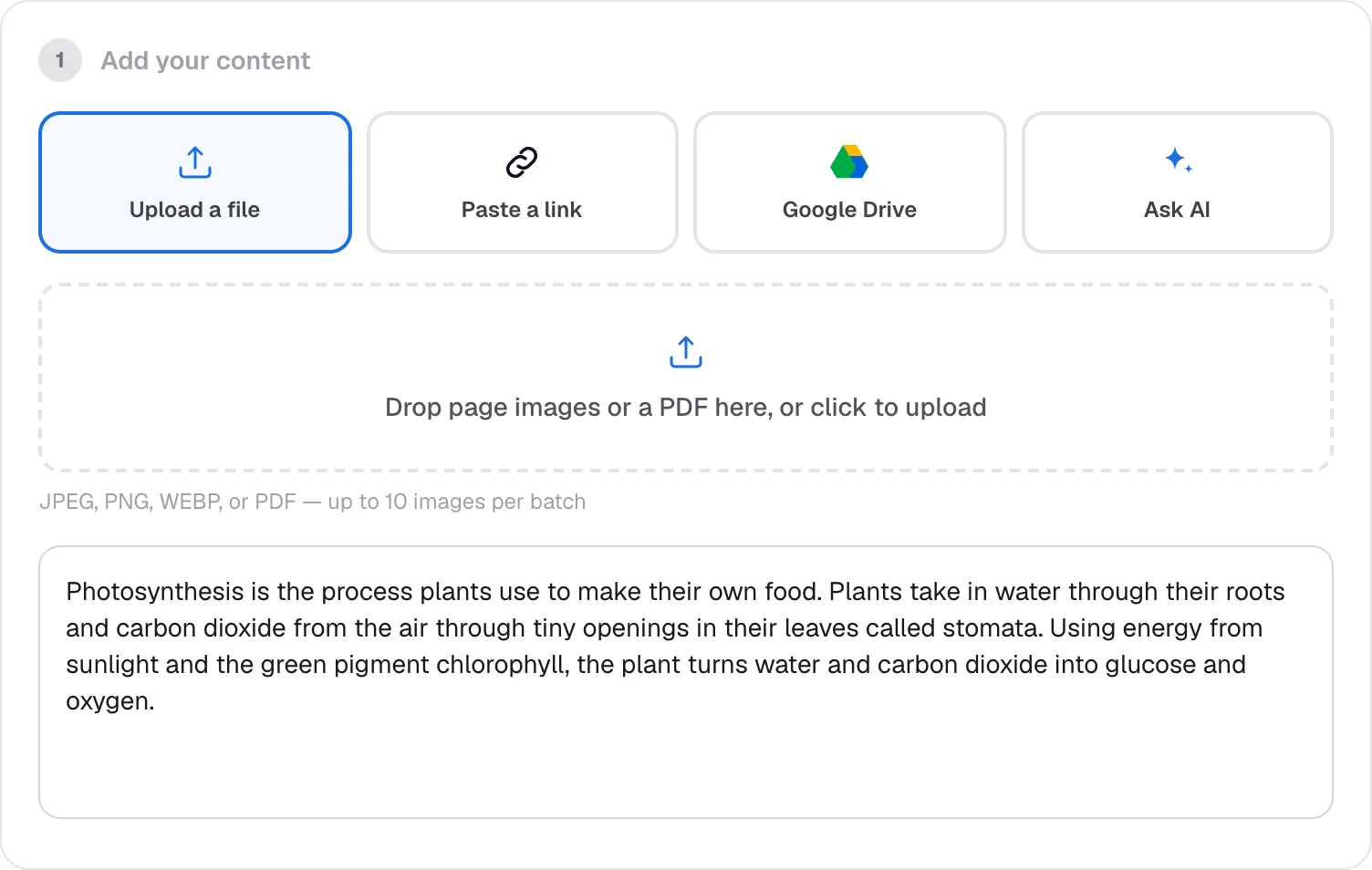
Upload a file or photos of a book page, paste a link, pick a document from Google Drive, ask AI to write a text — or simply paste your own. This is the material everything else is built from.
- 2
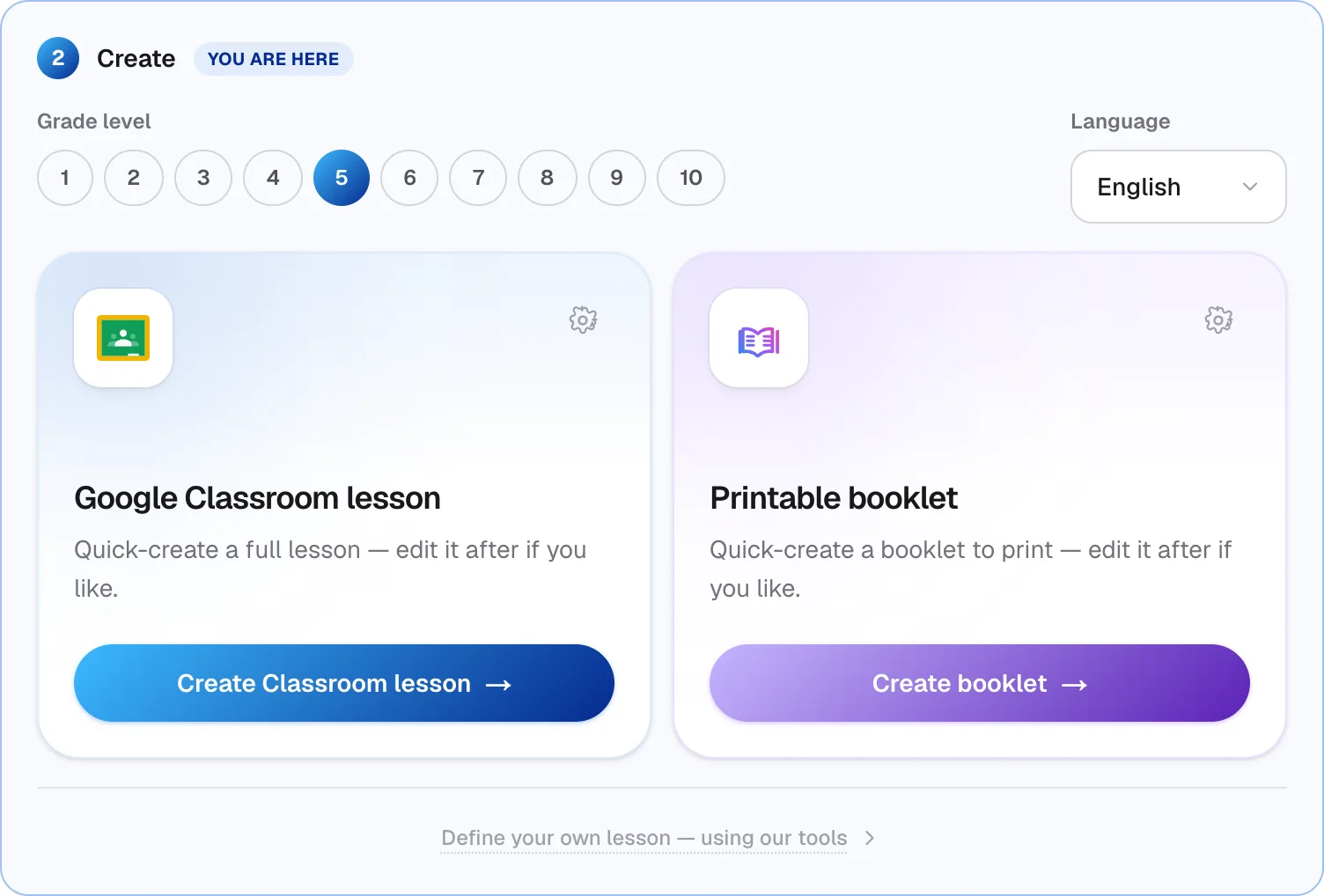
Pick a grade and quick-create
Choose the grade and language, then create a complete Google Classroom lesson or a printable booklet in one click. The grade decides what's included — hands-on exercises for younger students, discussion and argument tasks for older ones.
Tip: Use the gear on each card to choose what it includes.
- 3
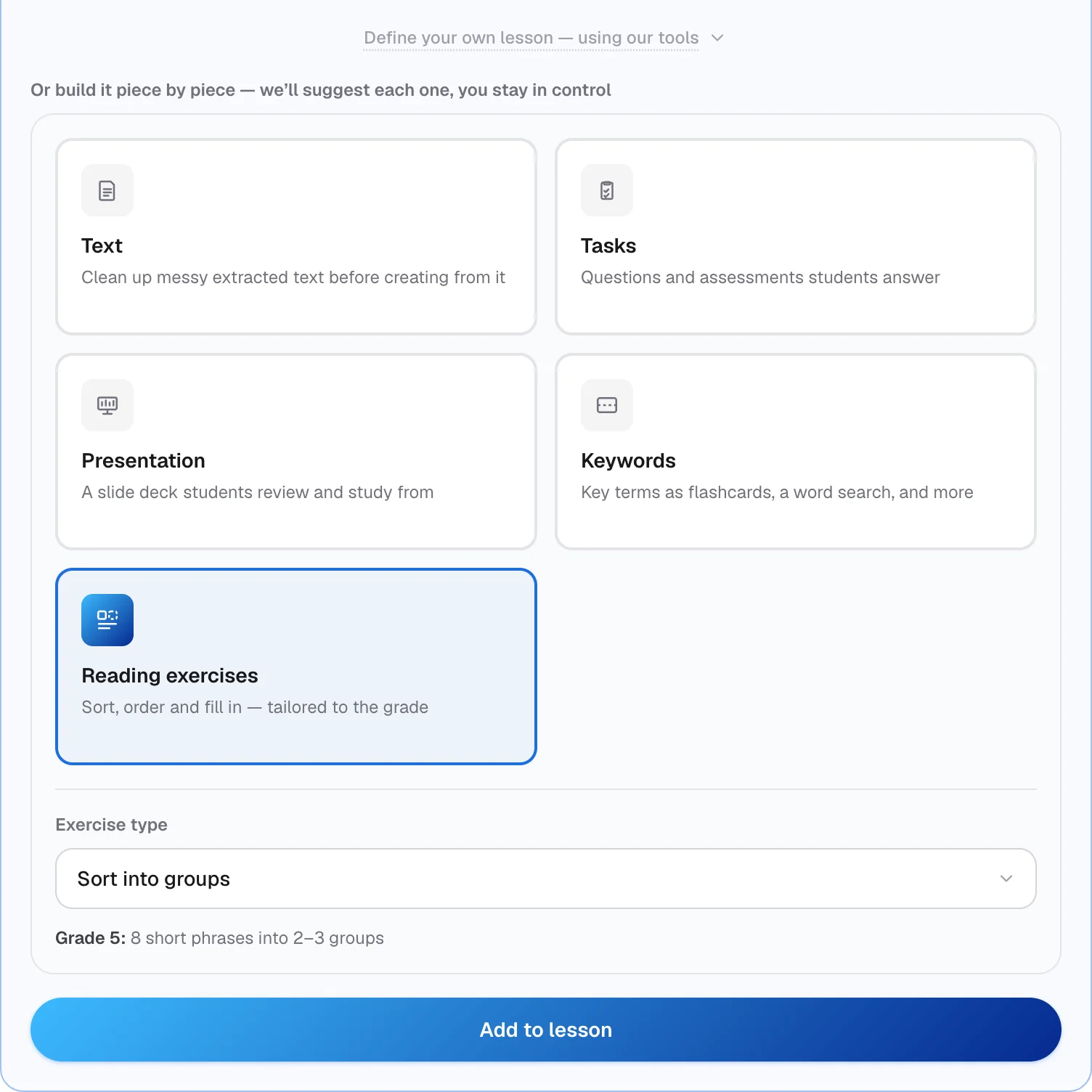
Or build it piece by piece
Open “Define your own lesson” to make one thing at a time: a cleaned-up text, tasks, a presentation, keywords (flashcards, word search, crossword, secret word) or reading exercises (sort into groups, put in order, fill in the blanks).
- 4
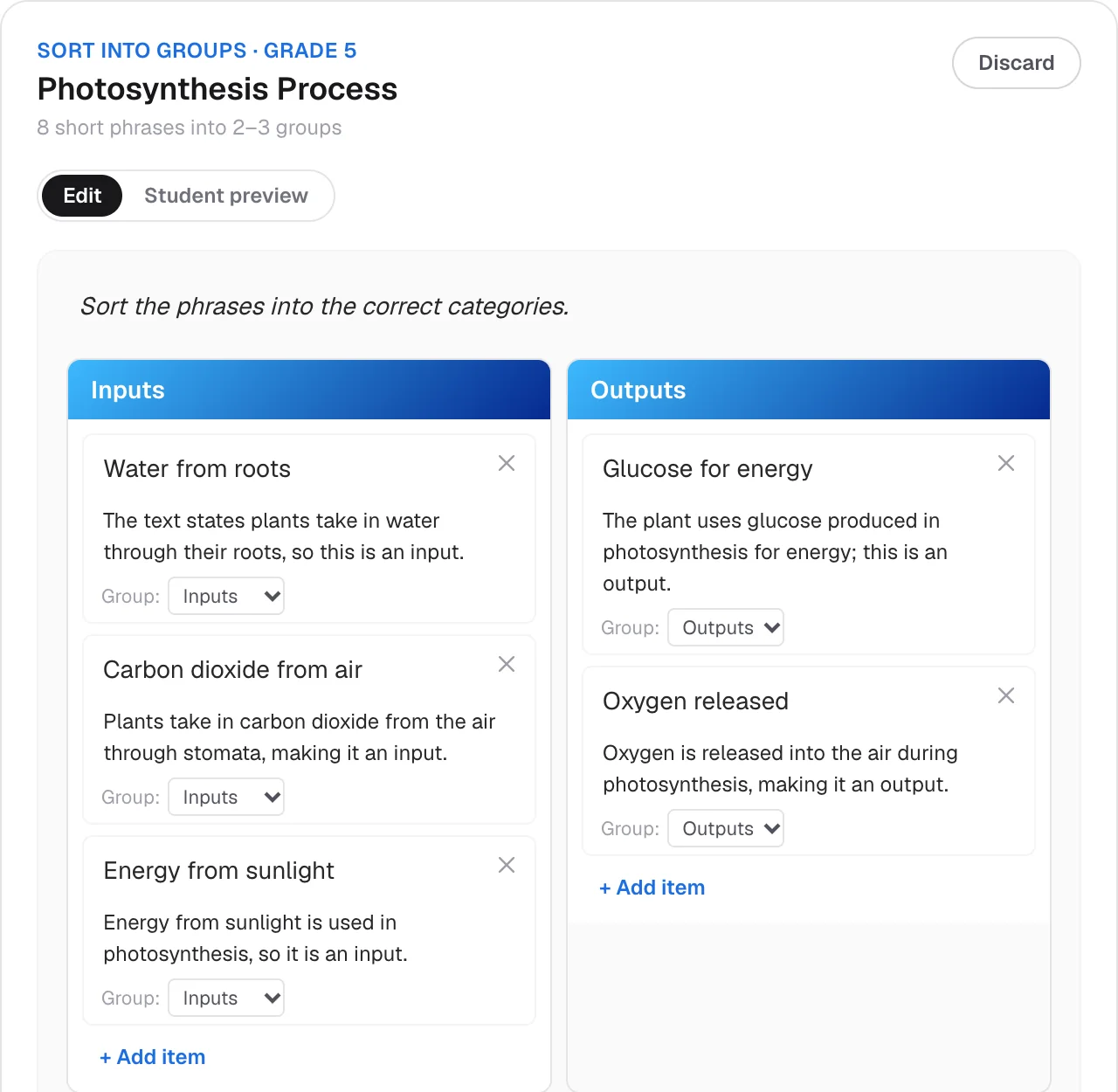
Review and edit
Everything is a draft you control. Reword questions, add or remove items, move things between groups, or switch to Student preview to see exactly what students get. When it looks right, add it to your lesson.
- 5
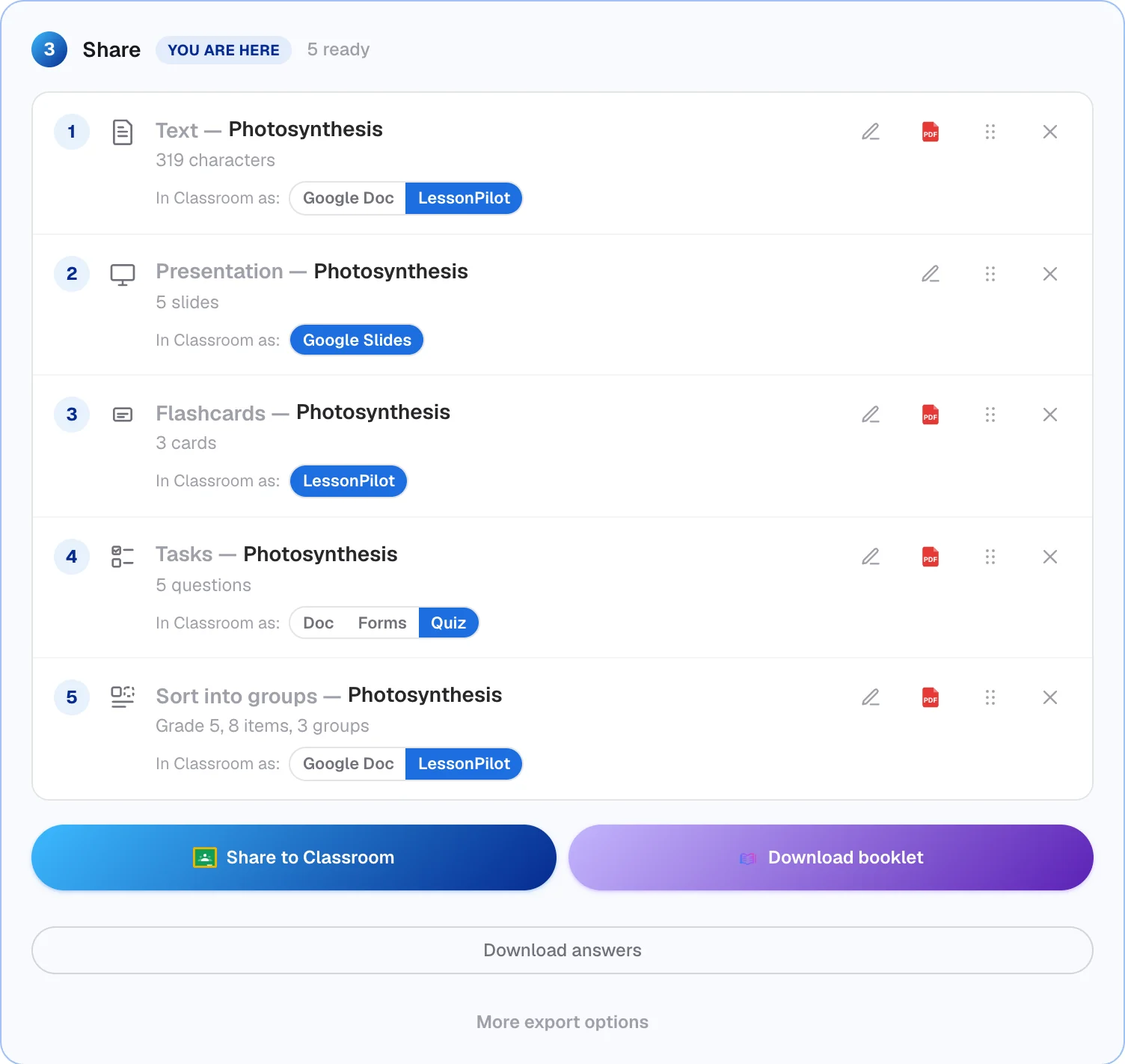
Share it
Your lesson collects in the Share step. Publish everything to Google Classroom in one go — the LessonPilot parts become one step-by-step lesson link, while Docs and Slides attach on their own. Or download a printable booklet with a separate answer key.
Tip: No Google Classroom class yet? We'll walk you through making one.
- 6
What your students see
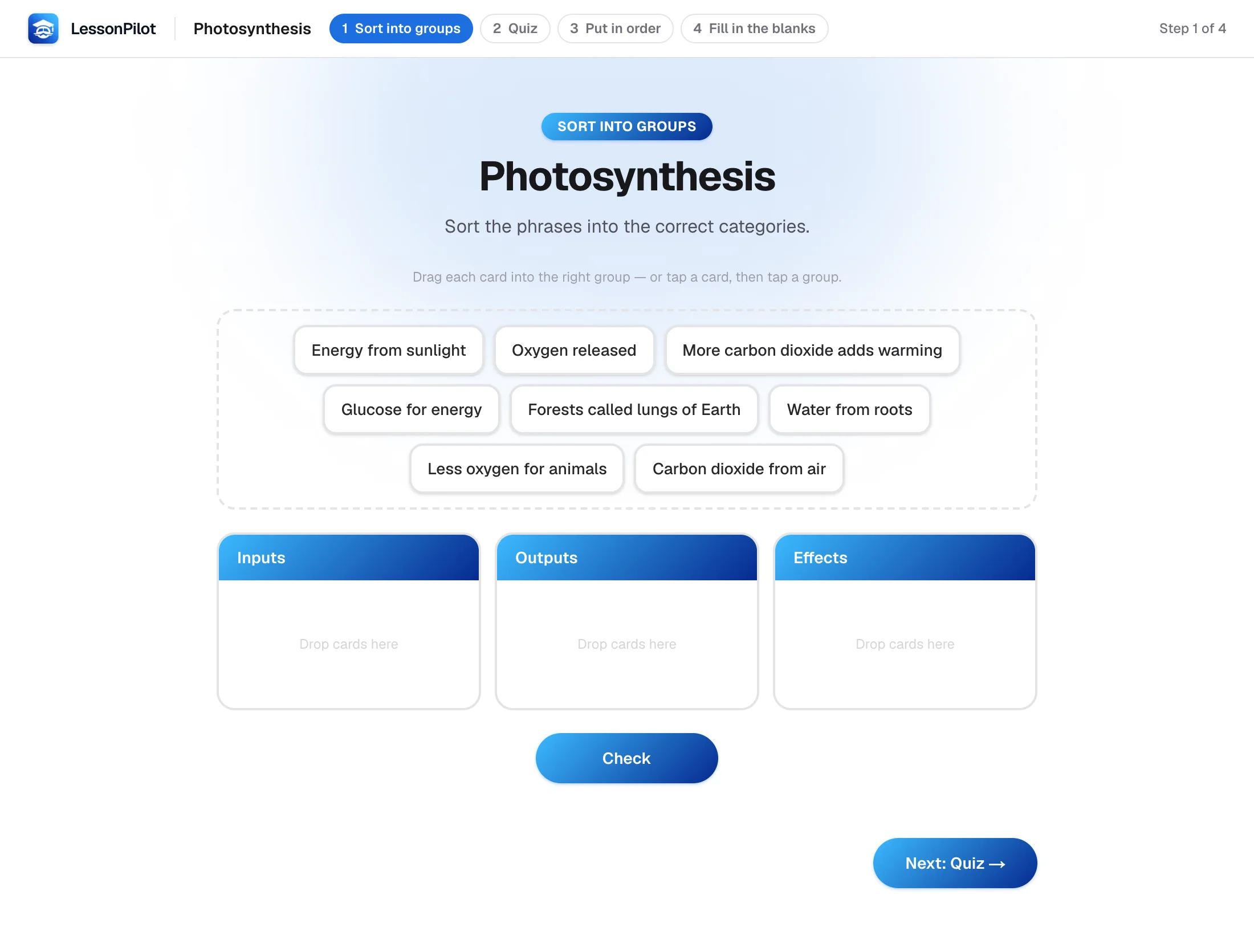
Students open one link — no account needed. They move through each part with Next and Back, drag cards into groups, put steps in order, fill in blanks and check their answers as they go.
Ready to try it?
Start from your own material, or pick one of 500+ ready-made lessons in the library.